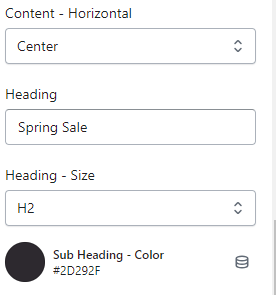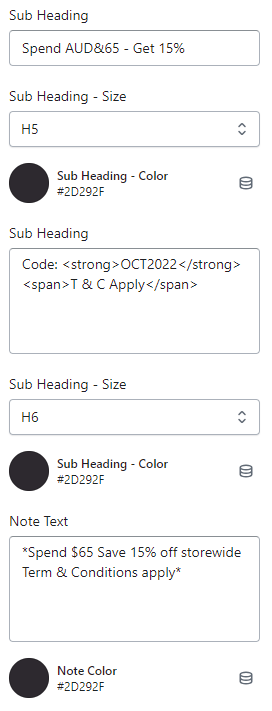
- The modal will typically appear as a popup on your Shopify store, prompting visitors to subscribe to your newsletter.
Click the Newsletter Modal section to open its settings:
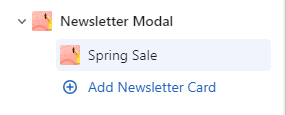
On the right side of the page, you will see Newsletter Modal – settings:
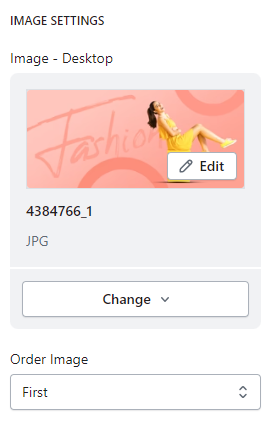
Image Settings
- Image – Desktop : Allow merchants to upload a image file .
- Order Omage : to change the image order of a product.
Content – Setting
- To add or edit the displayed content, you can do so in the “Content – Setting” part. You will enter the content for Heading, Sub Heading, and Note text into the respective fields. After that, you can adjust the font size of each content by clicking on “Heading – Size,” “Sub Heading – Size,” and “Note Text ” You can also change the text color by clicking on the respective fields: “Heading – Color,” “Sub Heading – Color,” and “Note Text – Color.”